Listen
The Listen tab is where Action Phrase actively monitors speech for phrases and shows your action history from past recognized phrases.
Control
The Control section displays status for the app, an audio waveform when listening is enabled, and start/stop listening buttons.
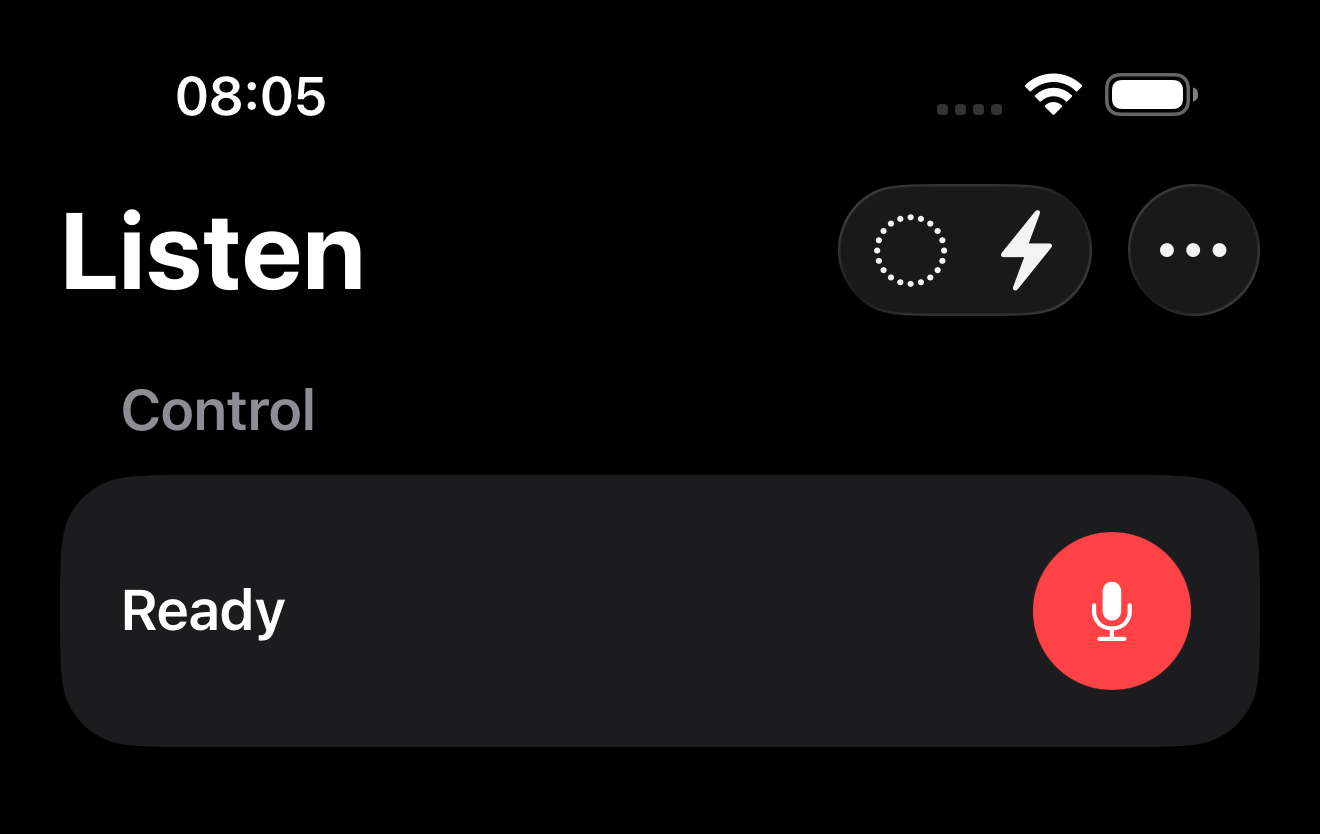
If audio file playback is chosen as the input source, pause and start/stop playback buttons will replace the star/stop listening button.
.png)
Status and Live Transcript
The Status field displays the current state of the speech recognition system, including the live transcript of what is currently being recognized. This updates in real time as you speak and helps you confirm what the system is hearing.
Configuration Panel
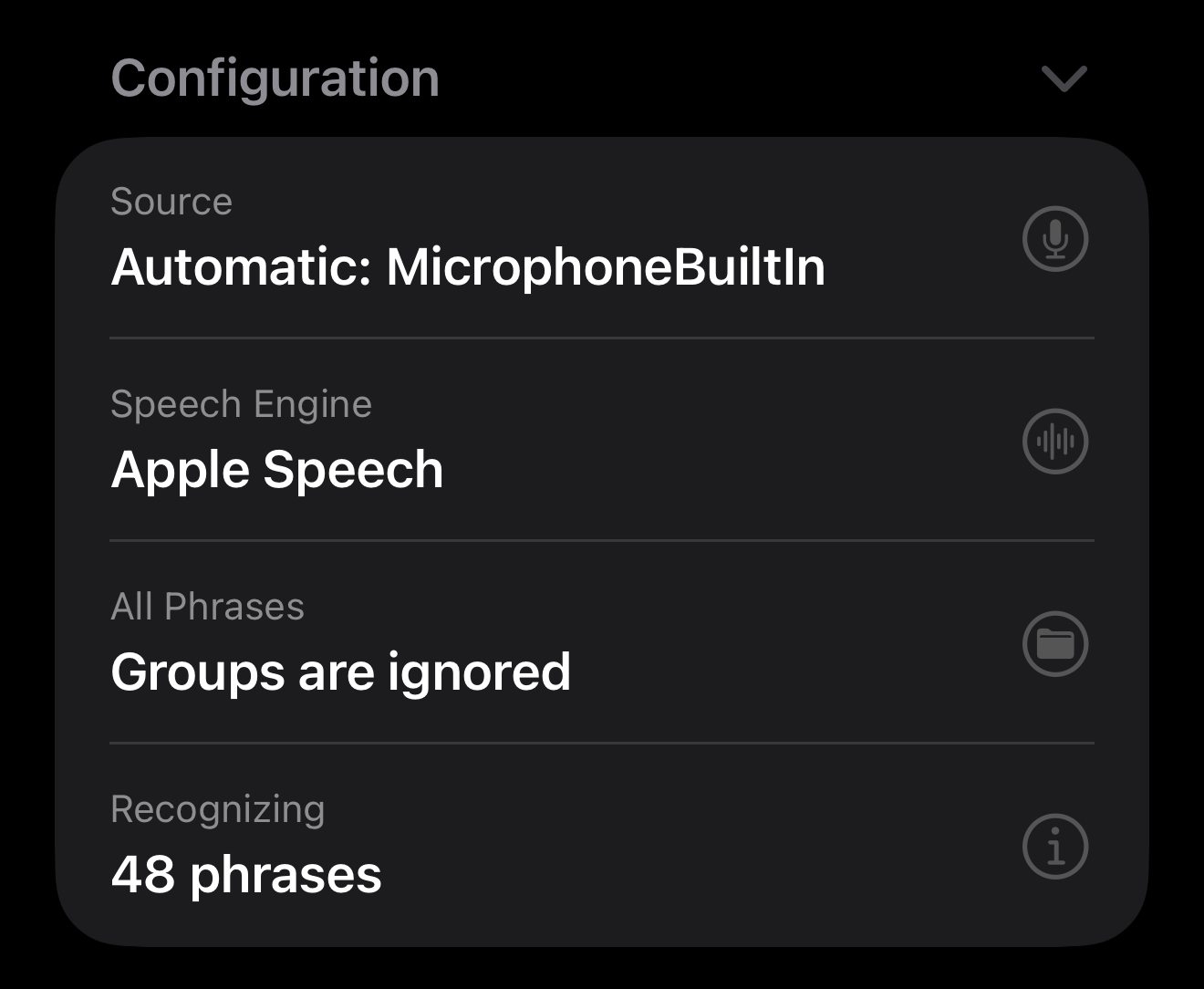
The Configuration panel shows the current listening context at a glance:
- Sound source
- Speech engine
- Which groups are active
- How many phrases are active and available
- Whether an Activation Phrase is required. Tap the secure field to see the Activation Phrase.
- Whether Action Phrase can be controlled via Shortcuts, OSC, or MCP.
This helps you confirm that the correct setup is enabled before going live.
Action History
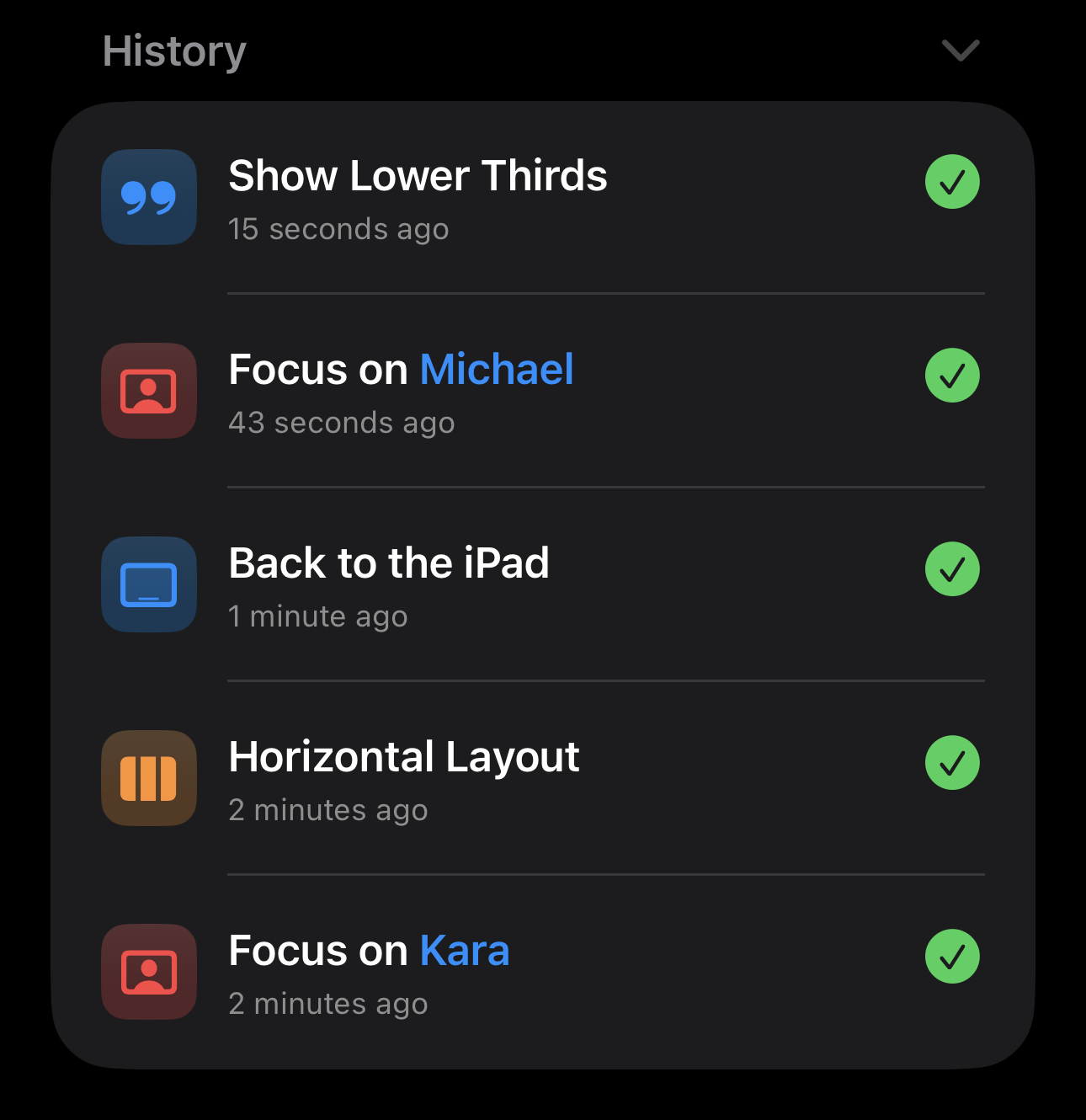
When a phrase matches, the matched phrase is displayed clearly on screen.
Depending on your Run Mode:
- Actions may run automatically.
- Or you may be prompted to confirm before execution.
This provides immediate visual confirmation during live use.
Toolbar
- Run Mode menu: Configure how Action Phrase recognizes your speech and executes phrase actions.
- More Menu
- Show Details: Displays additional details when phrases run, including which actions were executed.
- Show Configuration: Toggles the display of the Configuration panel
- Show Latest Match: Toggles the display of the last matched phrase in the Control section.
- Show History: Toggles the display of the Action History section.
- Clear History: Clears the entire action history on the device.
- Help: Opens to the Action Phrase Support webpage.
- Settings: Opens the settings sheet for the application.