Script Sessions
Opening a session
From a script, tap Open Session (or Start Script Session) to begin matching.
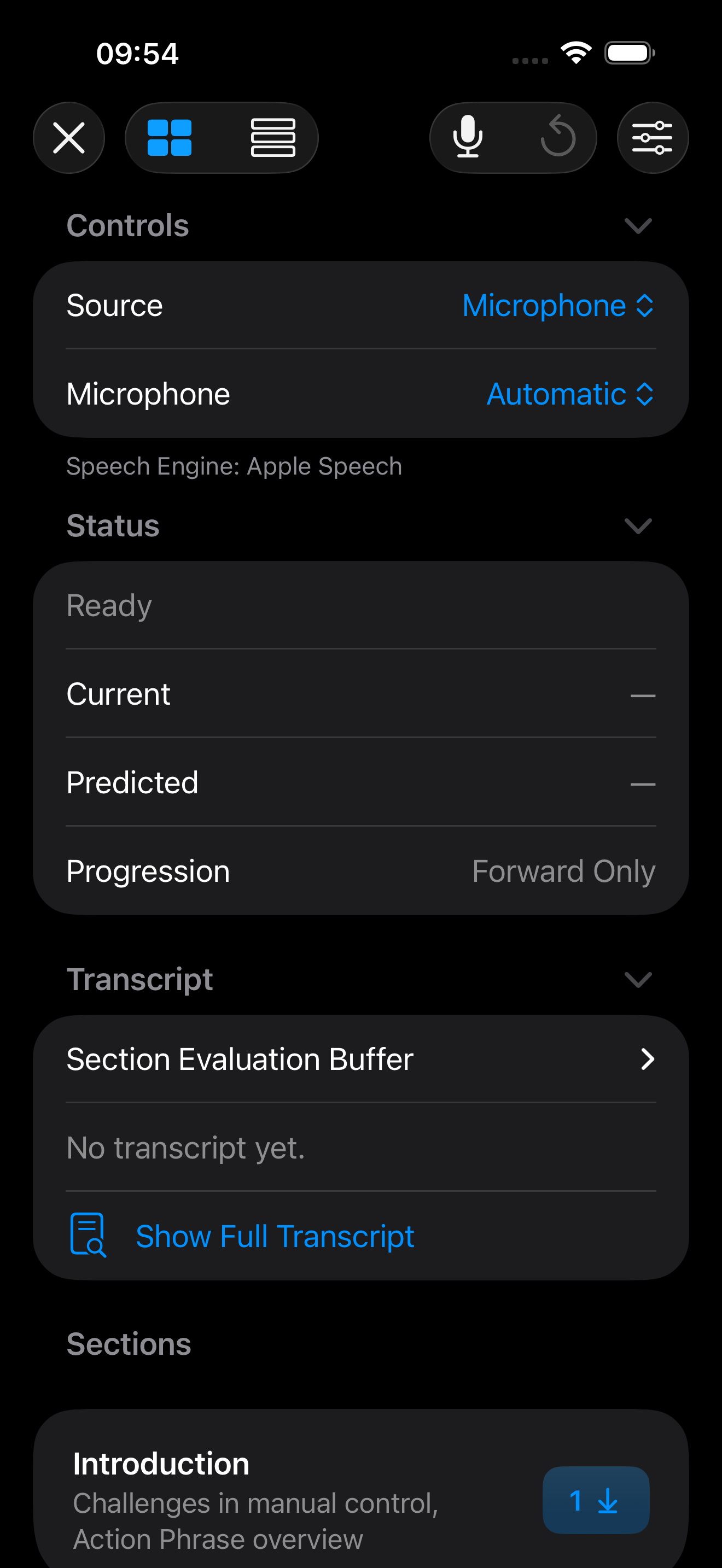
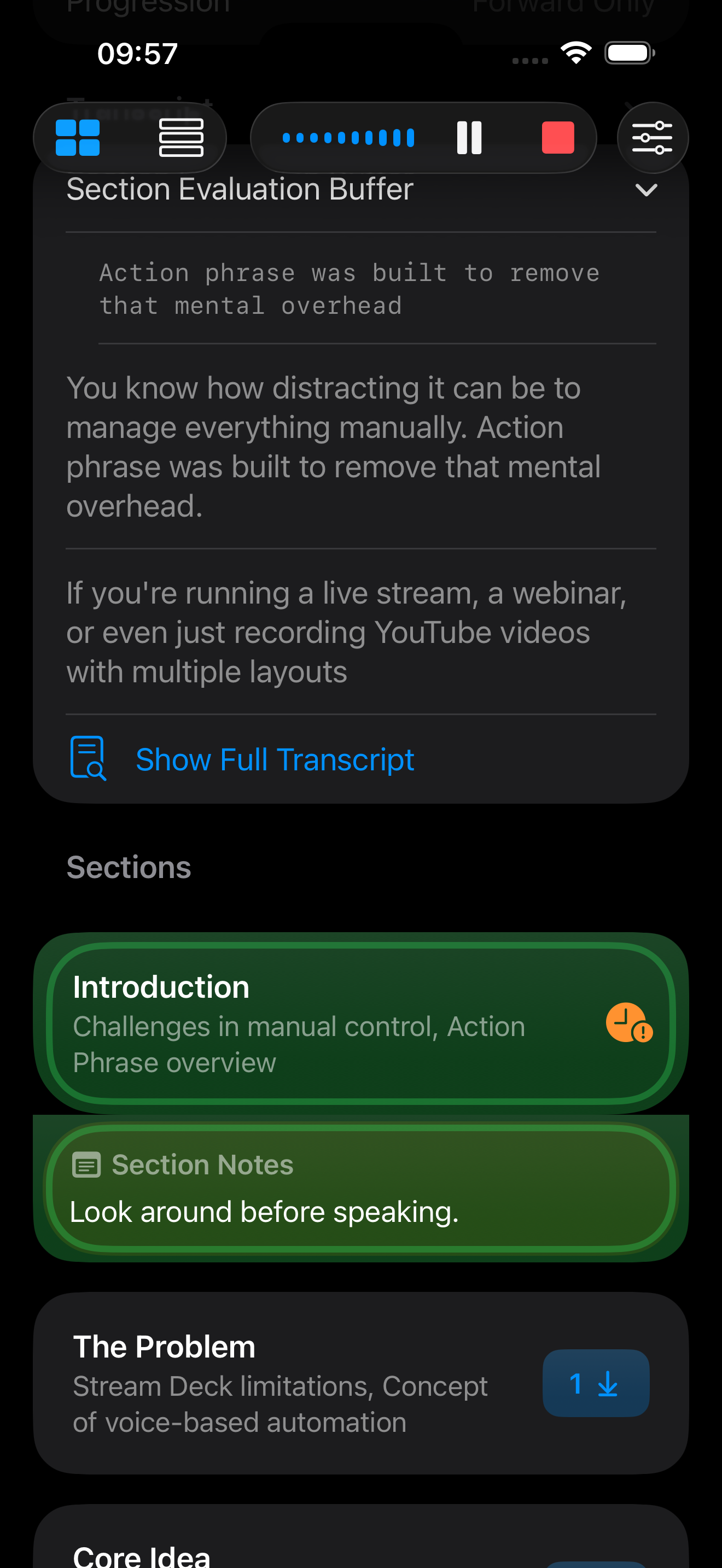
A session has:
- Controls (input, file/mic selection, playback settings)
- Status (current/predicted section, confidence)
- Transcript preview
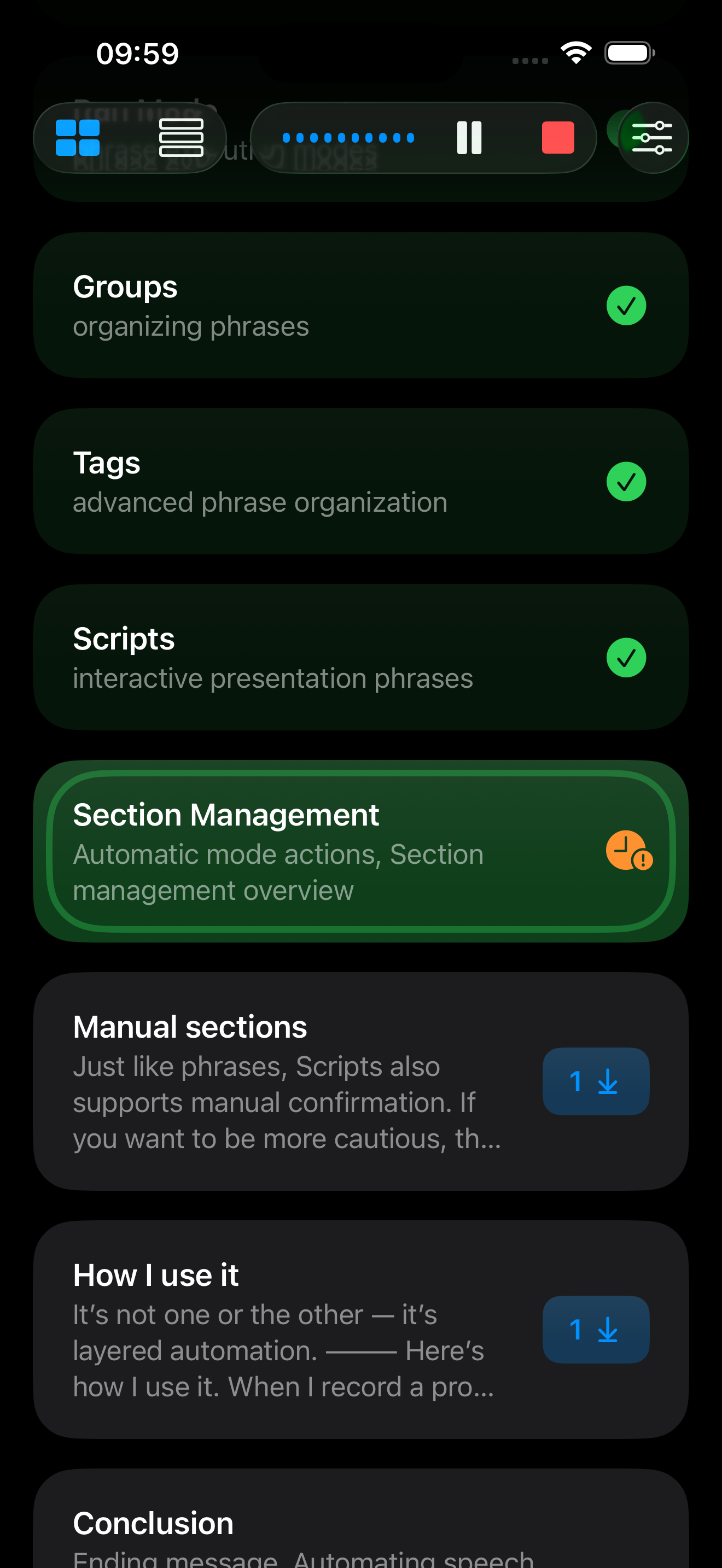
- Section list with action state indicators
Input modes
Scripts support two session inputs:
- Microphone: use live speech and match as audio is spoken.
- Audio File: replay a selected audio file and run matching against the file transcript.
For audio files, you can control monitor playback and playback speed.
Run mode
You can switch run mode in Script Controls:
- Auto: section actions run automatically as matches advance.
- On Confirmation: section actions wait for manual confirmation to run.
NOTE: This setting is persisted only for the current session. If you want to change the behavior for subsequent sessions for this script, adjust them in the Script Options section in the Script Detail screen.
Session controls and safety
During session, you can:
- Pause/stop listening or replay
- Reset script progress
- Jump sections (for troubleshooting/rehearsal control)
- Test a section’s actions directly
Studio Requirement for Automatic Running of Actions
In order to run actions automatically in scripts, you must have an active Studio subscription. With Free and Core tiers, you can go through a script and see sections recognized, but the actions associated with a section will not run automatically. You can set the Run Mode for the Script to Manual and run the actions manually with a tap.