Script Teleprompter
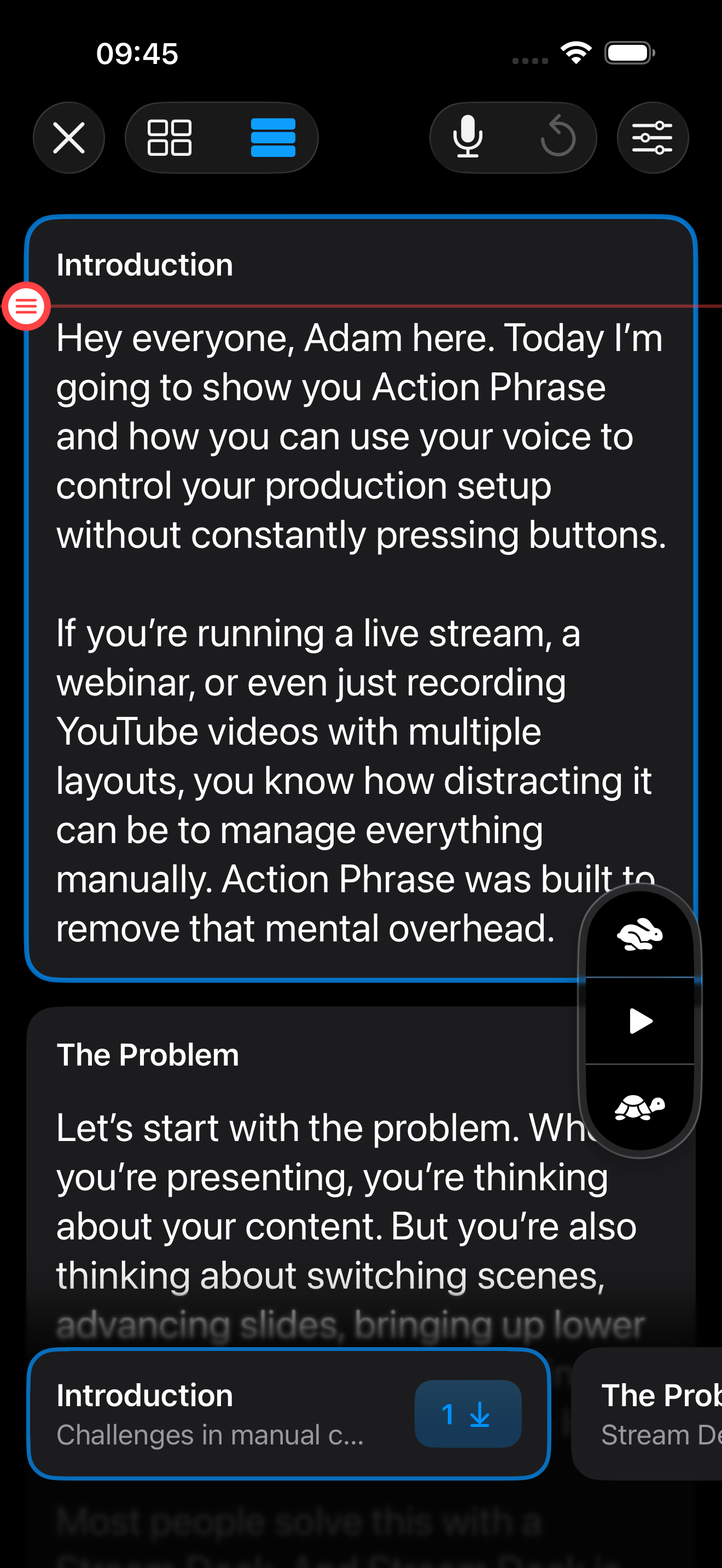
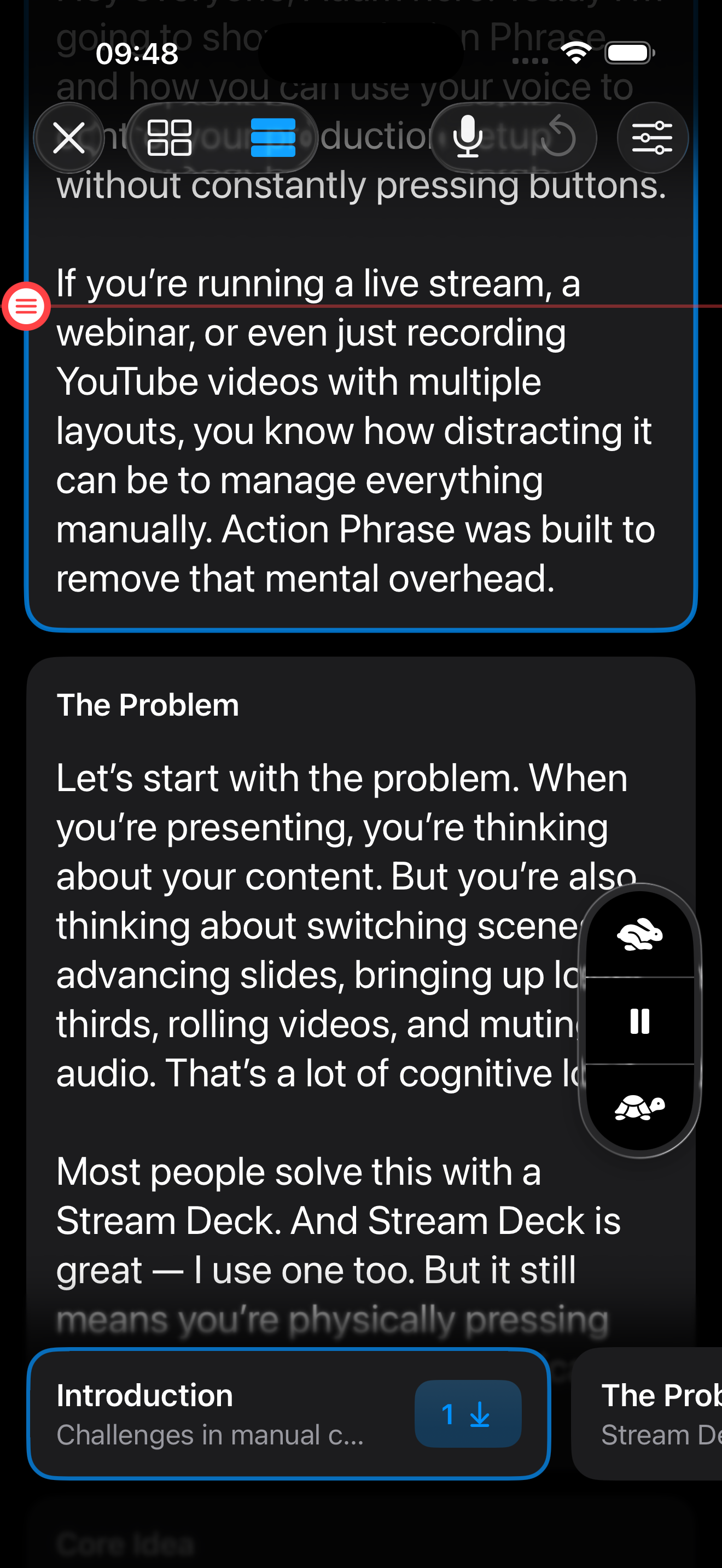
Teleprompter mode displays your script in a large, reading-friendly layout so you can present smoothly while your session is running.
You can follow along section by section, jump to any part of the script, and tune scrolling behavior for your pace.
Script Controls
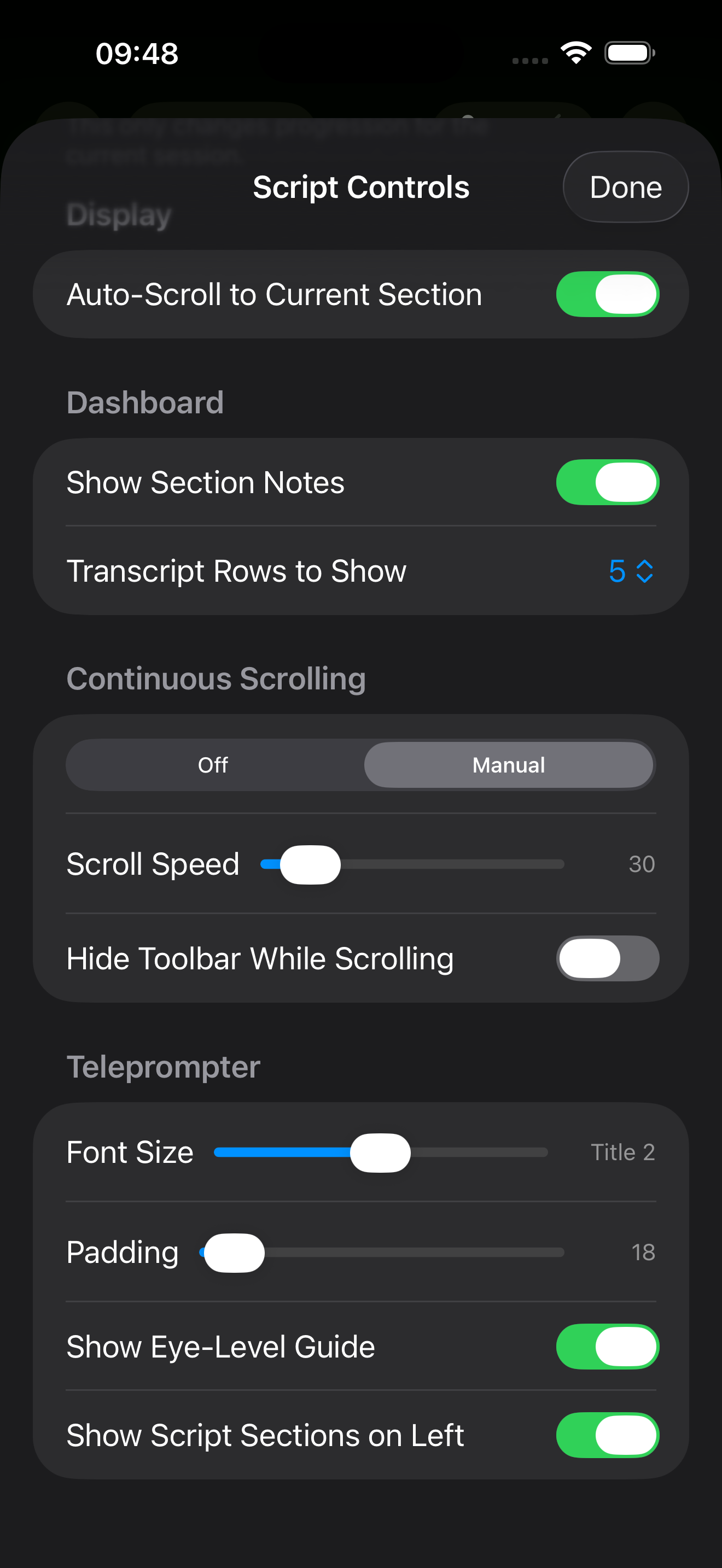
When in a Script session, tap the Options button in the upper-right corner to display the Script Controls sheet.
Auto-Scroll to Current Section
When enabled, Teleprompter automatically follows the section currently being matched in your session.
This helps keep the displayed text aligned with live progress.
Mirror Teleprompter Display
Flips the script text and the section buttons. Use this when you are displaying the device in a physical teleprompter with a mirror. This way, you will be able to read the script text when looking at the teleprompter.
Teleprompter Controls
Mode
Choose how scrolling runs:
- Off: no automatic scrolling
- Manual: fixed-speed automatic scrolling
Scroll Speed
Sets teleprompter scroll speed.
In Smart mode, this acts as the base speed that adaptive scrolling builds from.
Hide Toolbar While Scrolling
When enabled, the toolbar hides while scrolling is actively playing for a cleaner, distraction-free reading view.
Font Size
Adjust the teleprompter text size for readability and distance.
Use a larger size for on-camera reading or a smaller size to keep more text visible at once.
Padding
Controls horizontal spacing around the script text.
Increase padding for a narrower reading column, or reduce it to fit more text across the screen.
Show Eye-Level Guide
Displays a visual guide line to help you maintain a steady eye line while reading.
Useful for camera-facing sessions where consistent gaze matters.
Show Script Sections on Left
Shows a section rail so you can quickly jump to any part of the script.
Helpful when rehearsing, restarting, or navigating long sessions.
On-Screen Scroll Controls
While continuous scrolling is enabled, Teleprompter provides quick controls to:
- Slow down
- Play or pause
- Speed up
You can use Shortcuts or OSC to control the teleprompter speed and playback.