New Phrase
Creating a new phrase defines what Action Phrase listens for — and what happens when it matches.
Each phrase includes the following components:
- Enabled
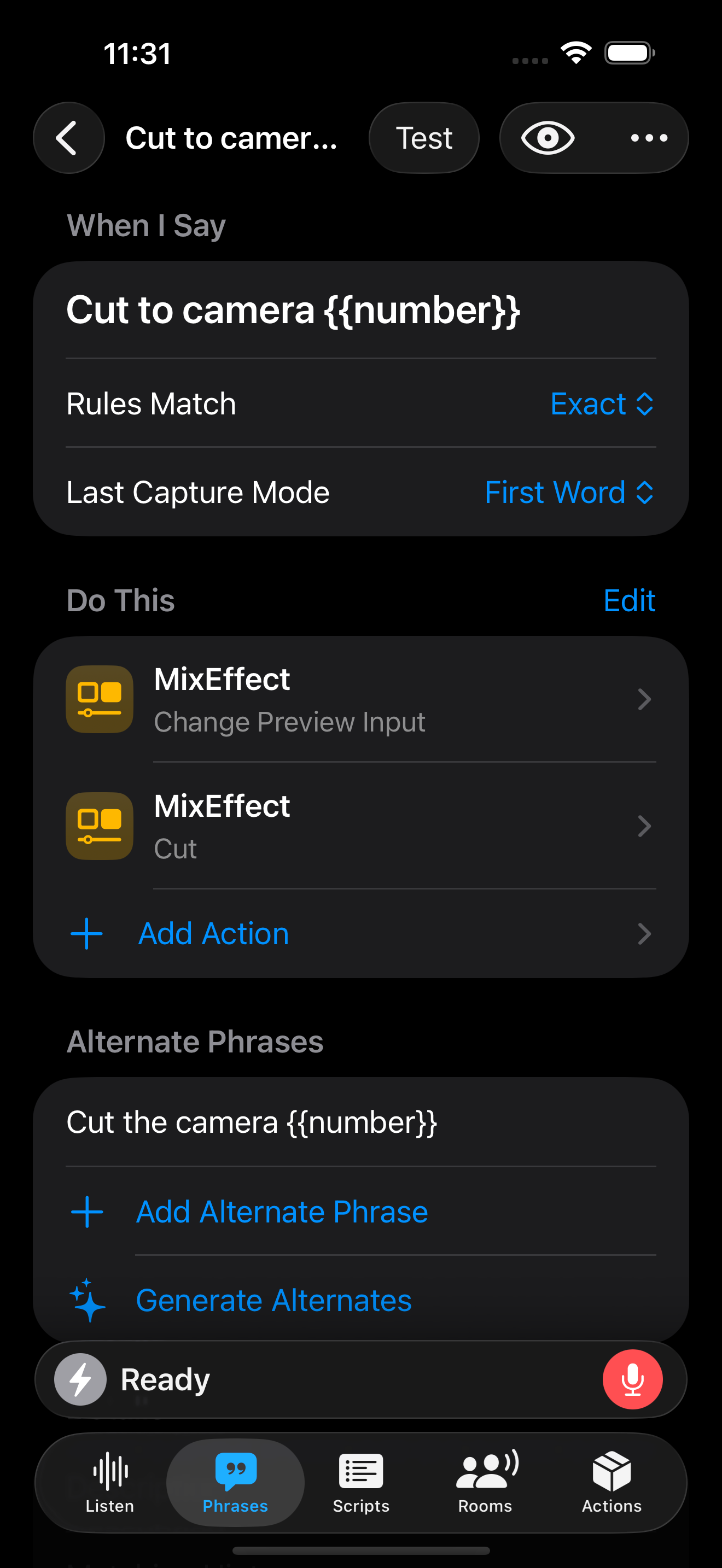
- When I Say
- Rules Match
- Last Capture Mode
- Do This
- Matching
- Alternate Phrases
- Details
- Tags
- Groups
Enabled
Tap the eye in the toolbar to toggle the phrase on or off.
Disabled phrases will not match or run actions, but remain saved in your library.
When I Say
The spoken text that Action Phrase listens for.
This is the trigger phrase. You can include parameters (such as numbers or custom variables) if needed.
Rules Match
Choose whether the phrase needs to be said exactly as entered or if it can be recognized as part of longer phrase.
- Exact
- Contains
Last Capture Mode
If a parameter is specified at the end of the phrase, you can adjust how much text is captured as part of the parameter:
- Full Text
- First Word
For instance, if your phrase is:
Go to Companion page {{number}}
You will want to use First Word so that it matches phrases such as Go to Companion page 16 .
On the other hand if your phrase is:
Go to scene {{text}}
You will probably want to use Full Text for Last Capture Mode. This will allow you to say things like Go to scene four grid or Go to scene iPad and Camera.
Do This
The actions that run when the phrase matches. You can assign an action to the phrase, which will be executed when the phrase is matched. If you have Core or Studio, you can assign multiple actions and reorder them.
Adding Actions
Tap Add Action to reveal the action picker to choose from the list of available actions. If you need to create a new action, go to the Actions section to do so.
Configure Actions
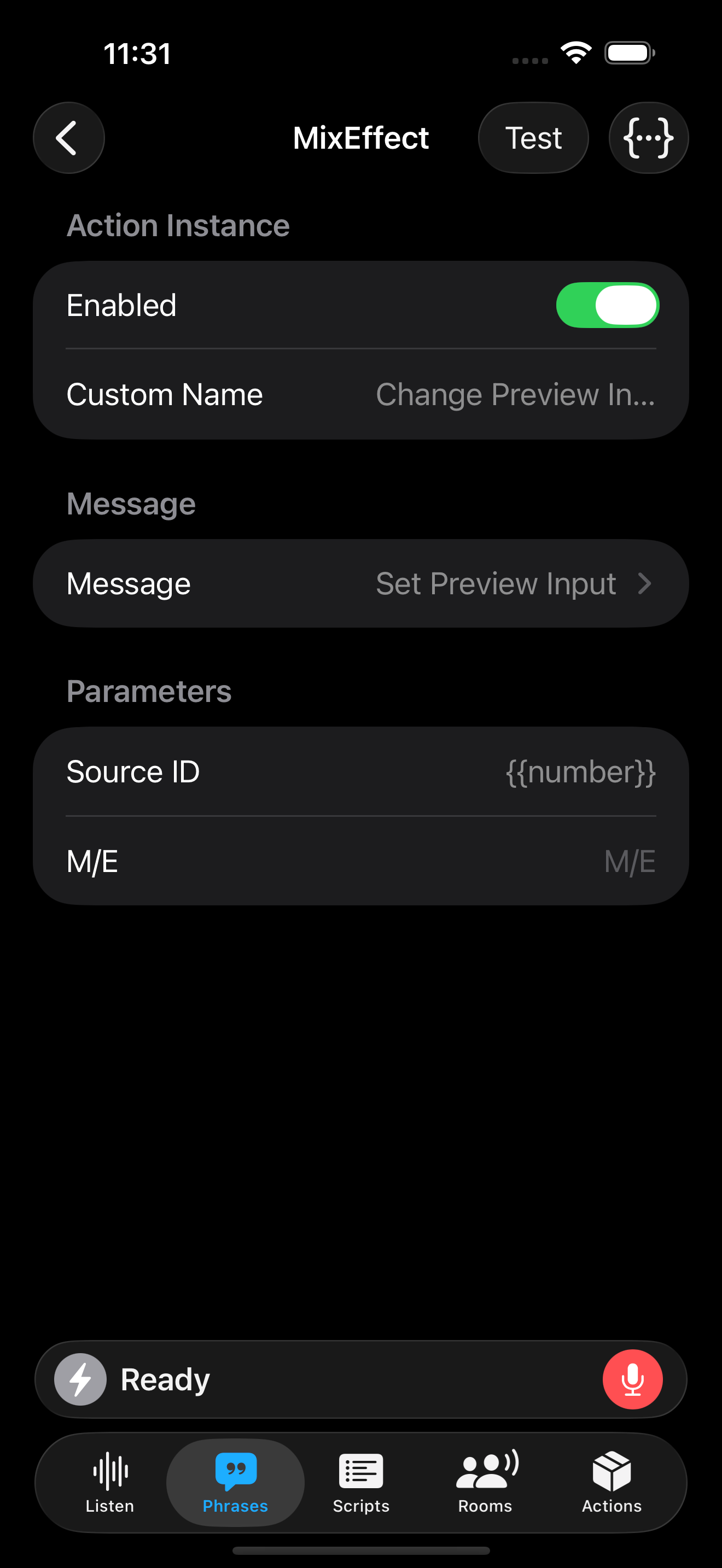
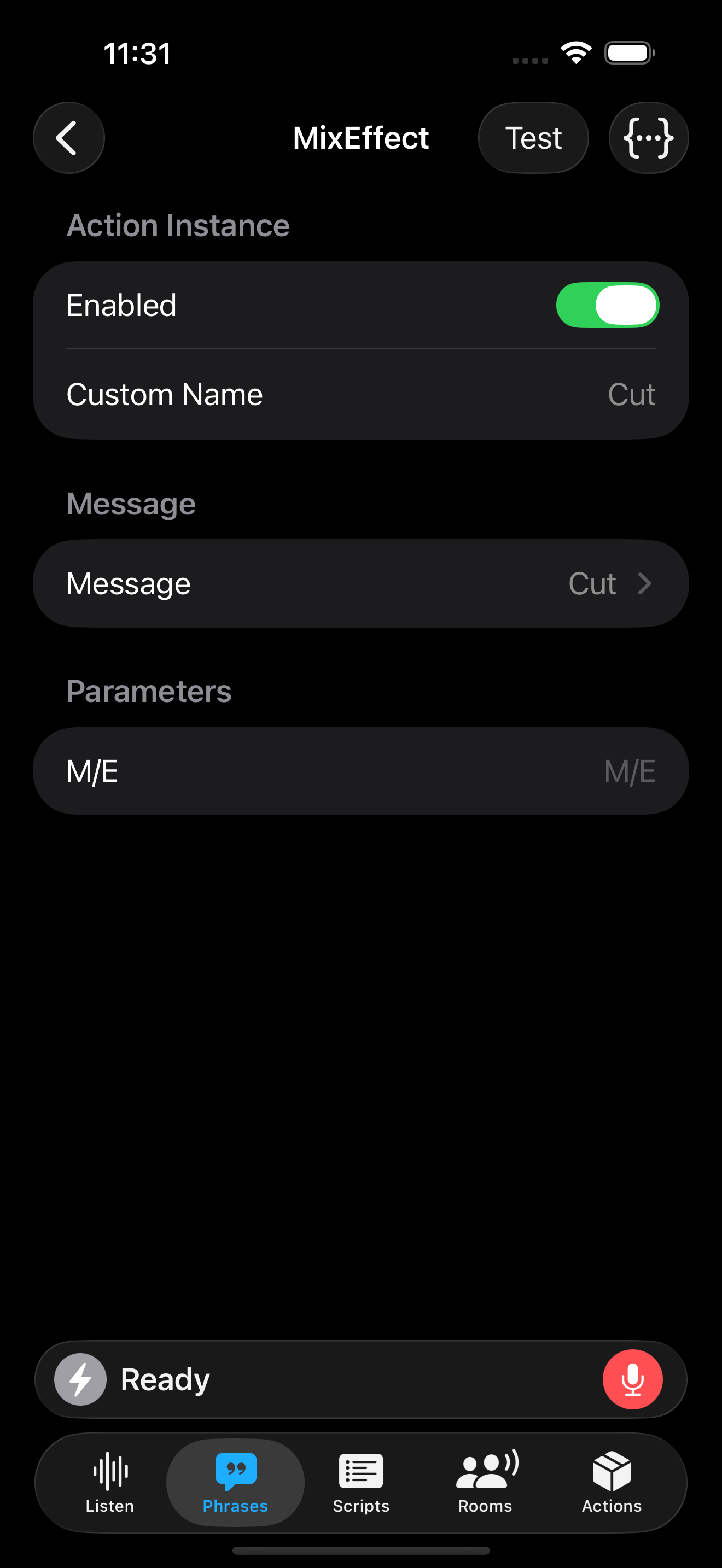
Once you've added your action instance to the phrase, you'll want to configure it to do exactly what you need it to do. For instance, in the "Cut to camera number" phrase, we use MixEffect to cahgne the preview input source on the ATEM switcher before performing a cut operation.
Alternate Phrases
Additional variations that trigger the same actions. Use this to support different wording for the same command.
Generating Alternate Phrases
Tap on the Generate Alternates to come up with alternate ways to invoke the phrase. This command is only available if your device supports Apple Foundation Models in Apple Intelligence.
Details
Optional metadata and organizational settings for the phrase.
- Description: A short note explaining what the phrase does.
- Matching Hint: A hint to system on how to pronounce or say the phrase.
Appearance
- Icon: Choose an icon to visually identify the phrase.
- Color: Assign a color for visual organization.
Organization
Tags
Add tags to organize phrases and support Smart Groups.
Groups
Assign the phrase to one or more Groups.
Groups control when phrases are active and help organize large setups.
Toolbar
- Test: Tests the phrase's actions. Running this will not add the phrase to your action history.
- Enable/Disable: Enable or disable the phrase. Inactive phrases cannot be run from the Phrases tab or via Shortcuts or OSC.
- More Menu
- Pin/Unpin Phrase: Pins or unpins the phrase to the top of the list in the Phrases section
- Move to iCloud/Device: This option appears if you have local storage enabled. You can move the phrase between iCloud and your device.
- Export Phrase: Exports the phrase to an .actionphrase document.
- Delete Phrase: Deletes the phrase from your device.