Create a Section Action
When in an active Script session, you'll speak out your script. Action Phrase will automatically detect when you have reached a certain section in the script. It can then run actions that you have defined for the section.
To add actions to your sections, follow these steps:
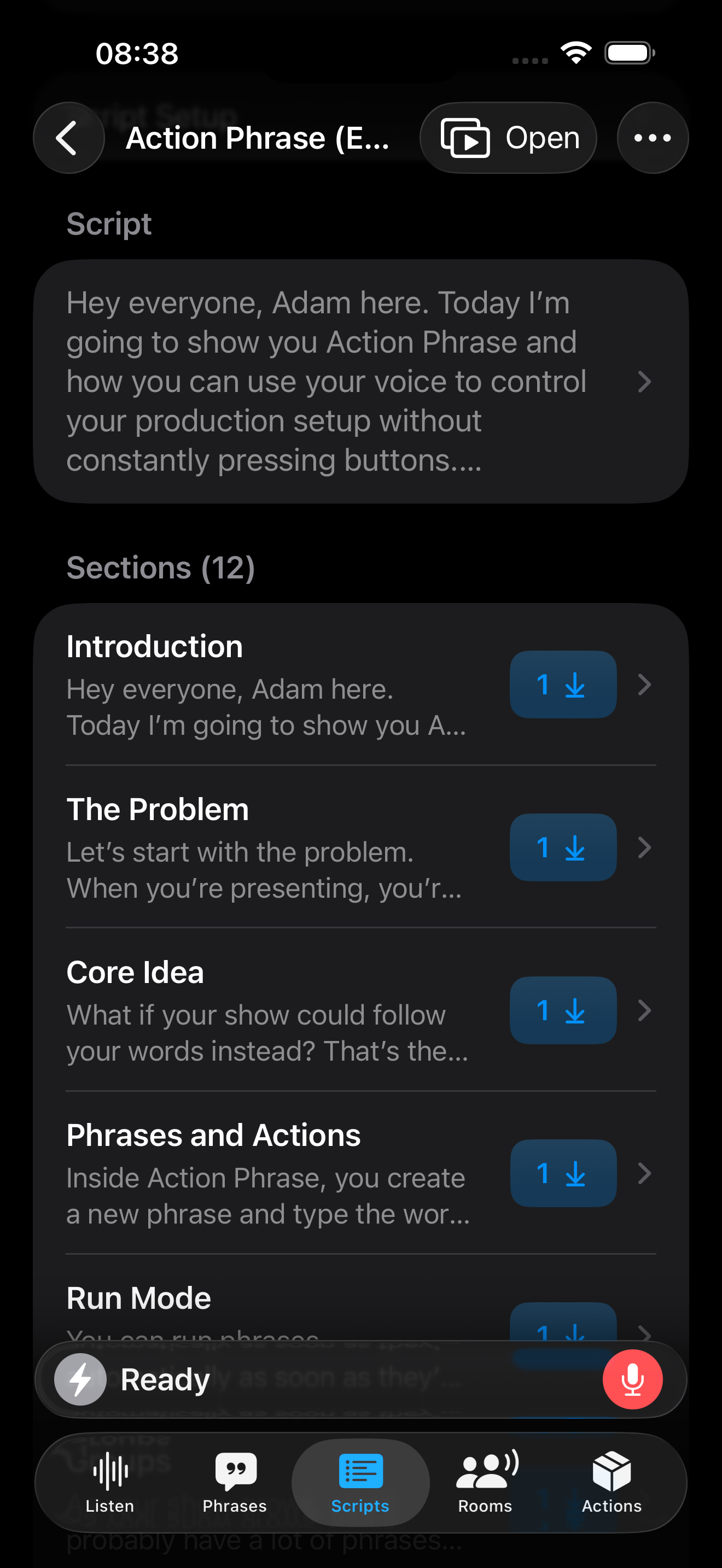
- Tap on a section from the script detail page
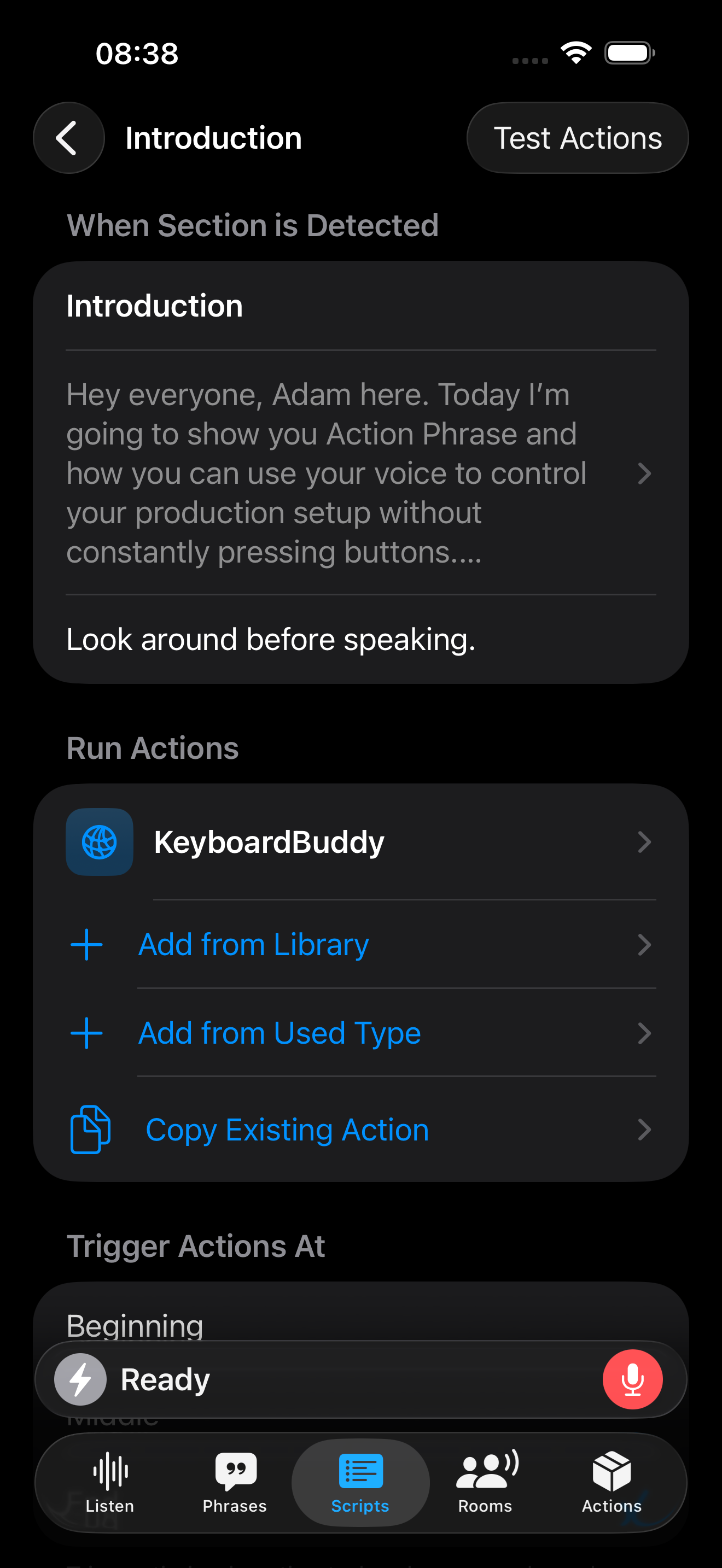
- Optionally add notes for section. Notes are visible in the Script Session screen
- Add an action from the Actions Library, an action already used in the script, or by copying an existing section action
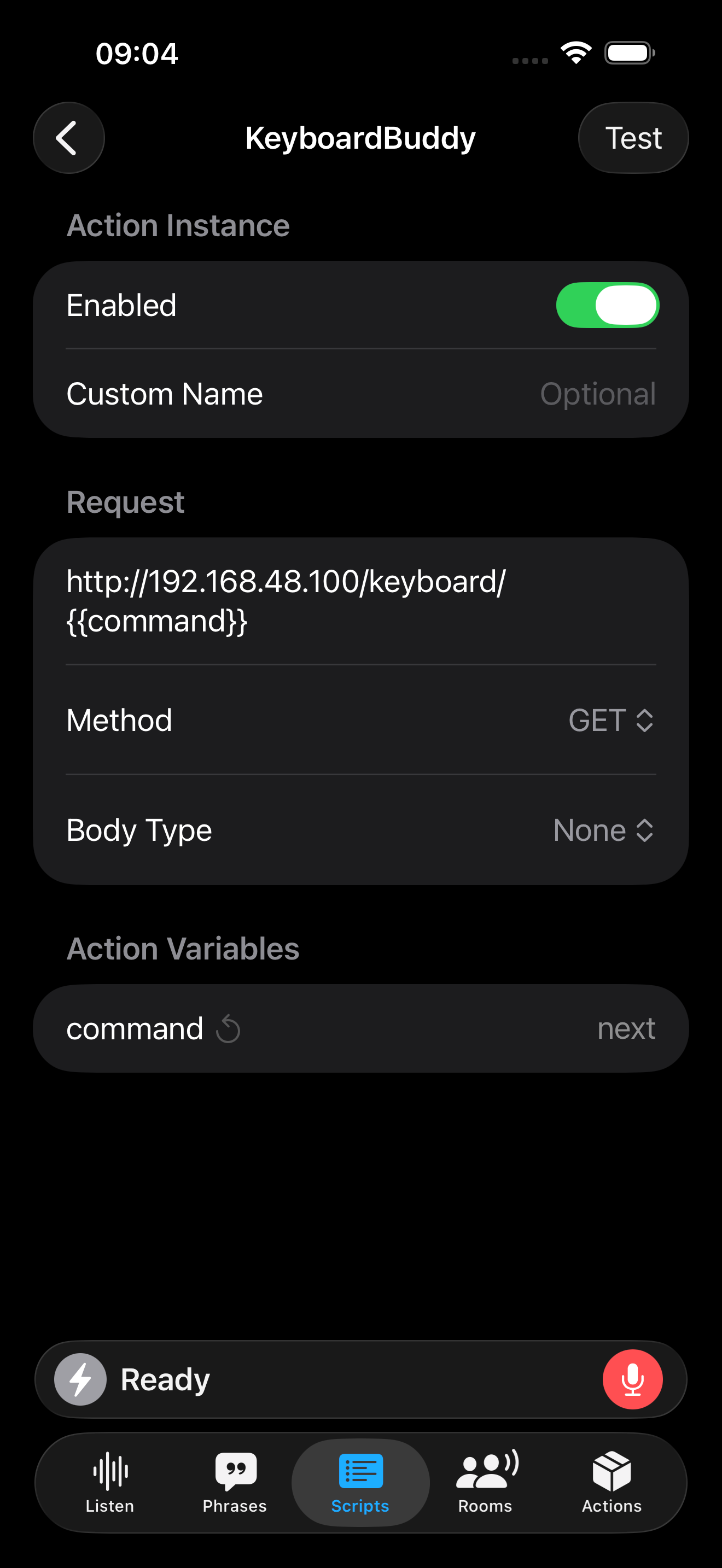
- Configure the action
- Configure the action's timing
- Set the action repeat behavior
Multiple Actions Per Section
As with phrases, you can add multiple actions to run in a section. Have your section triggers start a slide presentation, turn on lights, or change camera angles as you present.
Example
The screenshots below depict using Action Phrase to control a keyboard clicker to advance slides on a remote computer.
- When the Introduction script session is detected, a Web Request action called KeyboardBuddy will run
- KeyboardBuddy sends an HTTP GET request to a server with the
nextcommand replacing thecommandvariable in the URL - The remote server sends a next slide keystroke to the remote computer